GitLab to GitHub Migration Workflow
This workflow describes the steps involved in migrating a repository from the self-hosted campus instance of GitLab to the campus' enterprise account on GitHub.com.
Step 1: Create a new repository in your GitHub Organization
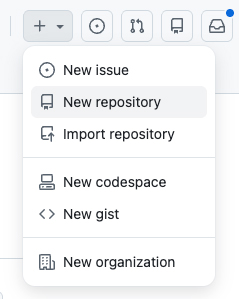
- While logged into your GitHub account and enterprise shell, go to your Organization and create a new repository.
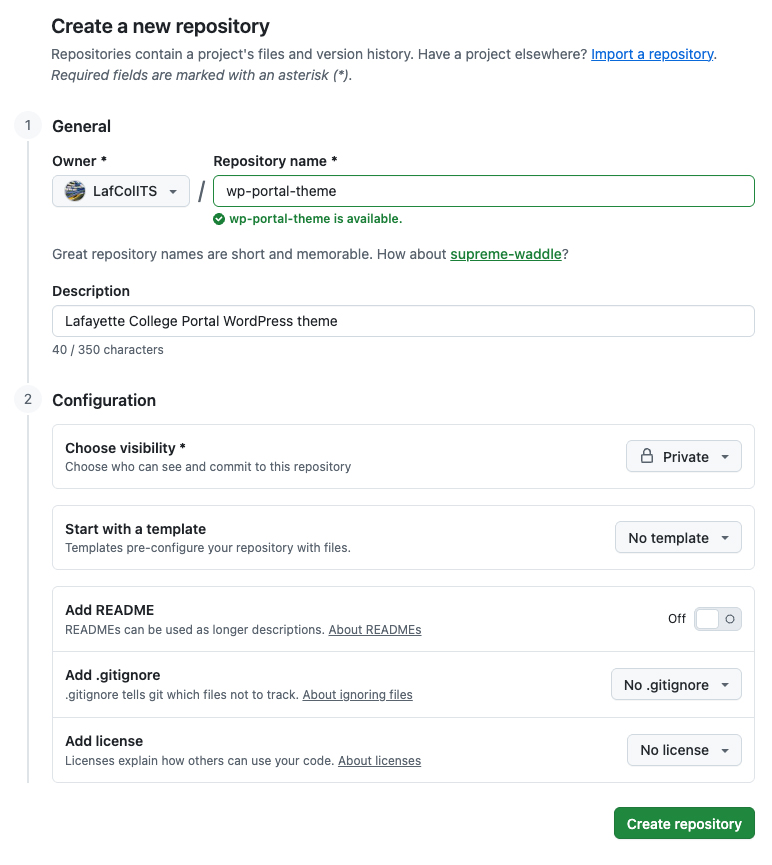
- Complete the following fields:
- Owner: name of relevant department.
- Repository: name of the repository.
- Description: description of repository content and project intent.
- Visibility: Be sure to select the appropriate visibility, as new repositories are not private by default.
- Public: world readable. This option is not appropriate for coursework by default, and consent needs to be discussed and negotiated with affected students prior to selecting it.
- Internal: campus discoverable. Enterprise members logged into the enterprise shell are able to see it.
- Private: only viewable to a limited number of specific accounts with relevant permissions.
- Leave everything else OFF/ NONE. The repo should be left totally empty.
Step 2: Import your GitLab repository into your new GitHub repository
There are two ways to ingest your GitLab repository into your empty GitHub repository, and which you select depends on whether your repository has many branches.
Workflow 1: Single Branch Repository
- Make sure all changes have been committed and your local copy of your repository is fully up to date.
- Update your local remotes.
Workflow 2: Repository with Multiple Branches
- Make sure all changes have been committed and your local copy of your repository is fully up to date.
- On git.lafayette.edu, navigate to your repository and click the blue code button, then copy the SSH url to the repository.
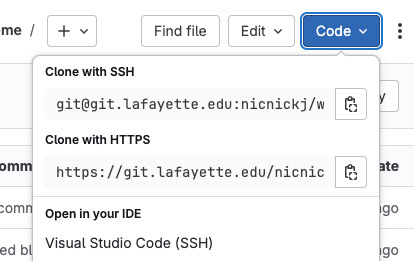
- Through the command line, enter
git clone --bare [url]to make a bare clone, replacing[url]with the SSH URL from GitLab. - Note: There will be no working tree in the new repository. It is cloned as a mirror, not a working copy.
- On GitHub, navigate to your repository and click the green <> code button, then copy the URL to your new repository.
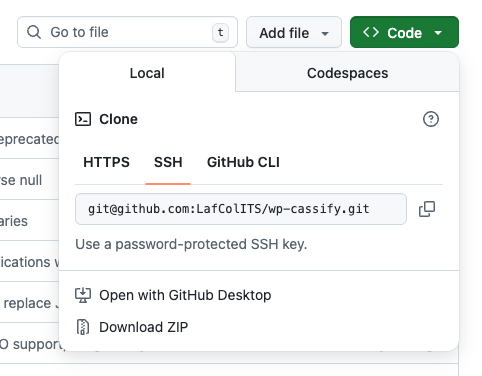
- Through the command line, enter
git push --mirror [github url], replacing[github url]with the URL from GitHub. - Delete your local mirror using your preferred method.
- Update your local remotes.
For instructions on creating a mirror repository through GitHub Desktop, see GitHub Desktop documentation on duplicating a repository.
Updating Local Remotes
This workflow details how to update your local access routes to your remote repositories.
Update your local remotes via the command line
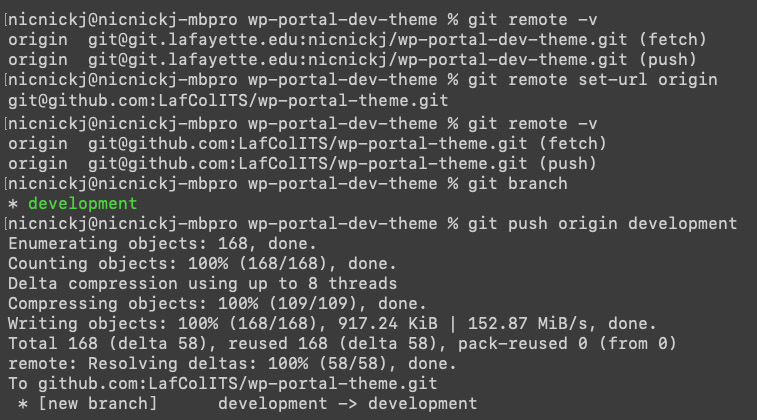
- On the command line, navigate to the repository for which you need to update your local remotes.
- Enter
git remote -vto check current remotes. - On GitHub, navigate to your repository and click the green <> code button, then copy the URL to your new repository.
- Back on the command line, enter
git remote set-url origin [github url], replacing[github url]with the URL copied from GitHub. - Check
git remote -vagain to ensure that fetch and push have updated to the new GitHub links. - Test the update with a simple pushed update.
Update your local remotes via GitHub Desktop
Review GitHub Documentation for instructions updating remotes through GitHub Desktop